 Get Started
First, take our free Trial Lesson and Assessment!
It's okay if you don't know where to start
Not sure where to start? That’s okay! In our trial lesson, you’ll experience Brighture’s most popular class, Phonics and Pronunciation. After the trial lesson, you will receive an assessment result by email highlighting your strengths and the areas to improve.

What You Need
All you need is a computer or tablet and a Google account (Gmail address) to get started right away!
If you are using a computer :
We recommend using the Google Chrome browser to take lessons. Please download and install the Google Chrome browser from the link below.
If you are using a tablet:
We recommend using the Google Meet and Google Docs applications. Please install the applications in advance according to your device.
Android OS
iOS (Apple)
Free Trial Lesson and Assessment Process
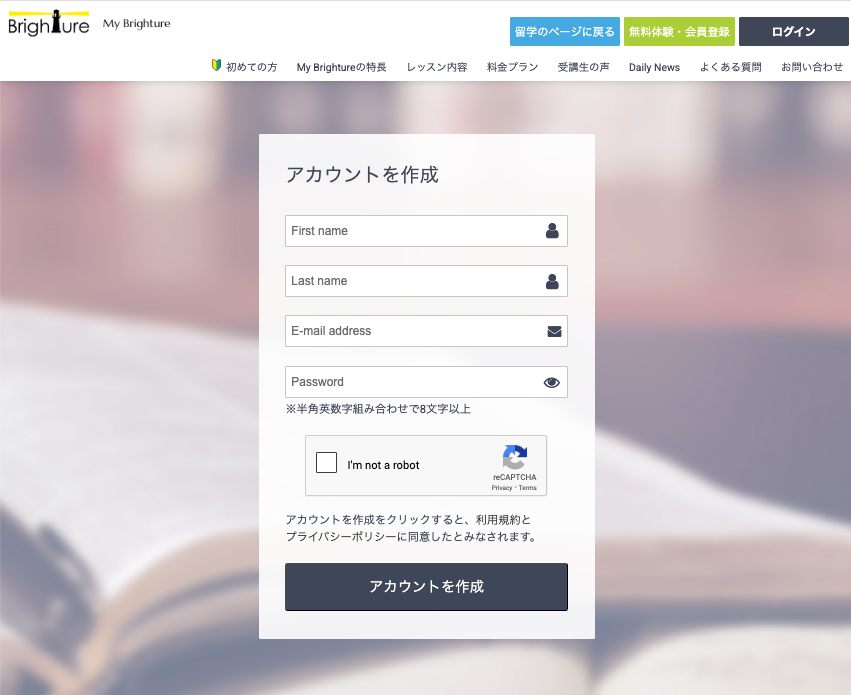
1. Sign up and book a trial lesson
After you sign up, you will receive an email for email address verification. Click on the URL in the email to complete your registration. Once you have completed your membership registration, you can now book a trial lesson!
2. Take a trial lesson
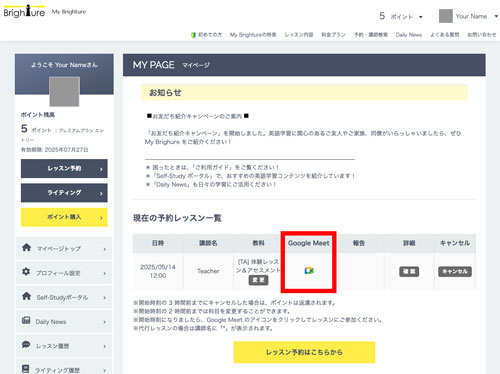
On the day of the trial lesson, click the Google Meet icon displayed in the "My Reservations" list on your My Page to join the lesson. The icon will appear 5 minutes before the lesson.
3. Check the feedback
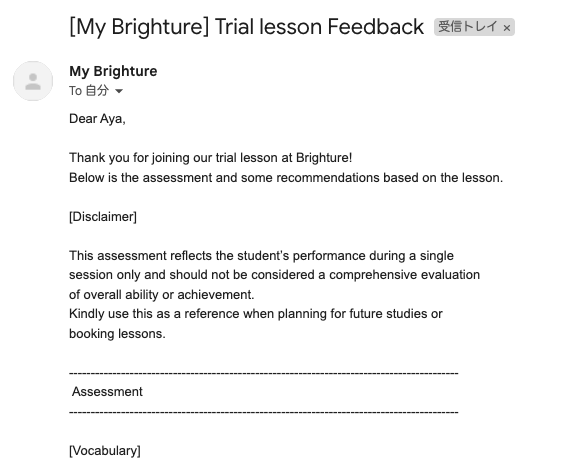
After taking the trial lesson, you will receive an email with the subject "[My Brighture] Trial Lesson Feedback" within 24 hours. Check the assessment results and recommended lessons in the email and consider your study plan.
How to Book a Lesson
1. Log in and go to the booking page
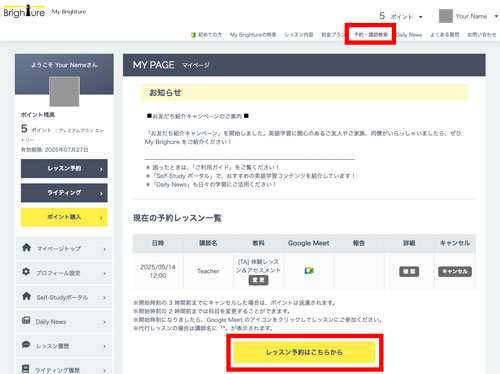
Log in to My Brighture and click [Book a Lesson] to go to the reservation page.
2. Select date and subject
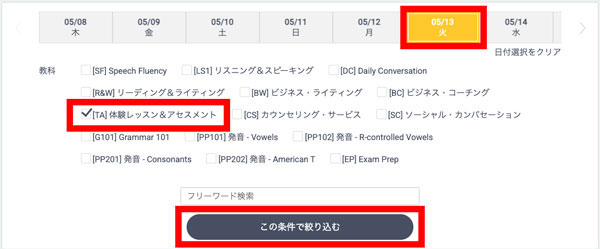
On the Reservation page, select "[TA] Trial Lesson & Assessment" from the desired date and subject columns, then click the "Filter by this condition" button.
3. Select your teacher and time slot
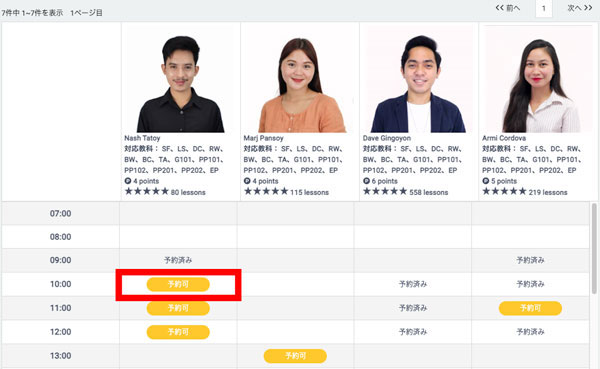
After clicking the "Filter by this condition" button, click the [Available] button for the desired reservation slot from the instructor's reservation slots that are displayed.
4. Select a subject
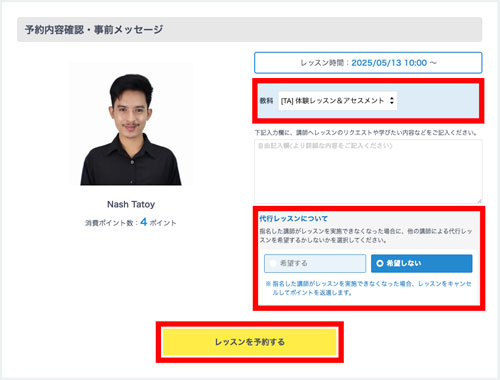
Select "[TA] Trial Lesson & Assessment" in the subject section and select whether you require a substitute teacher. Make sure that the lesson date, time, subject, and substitute preference are correct, then click the [Book a Lesson] button.